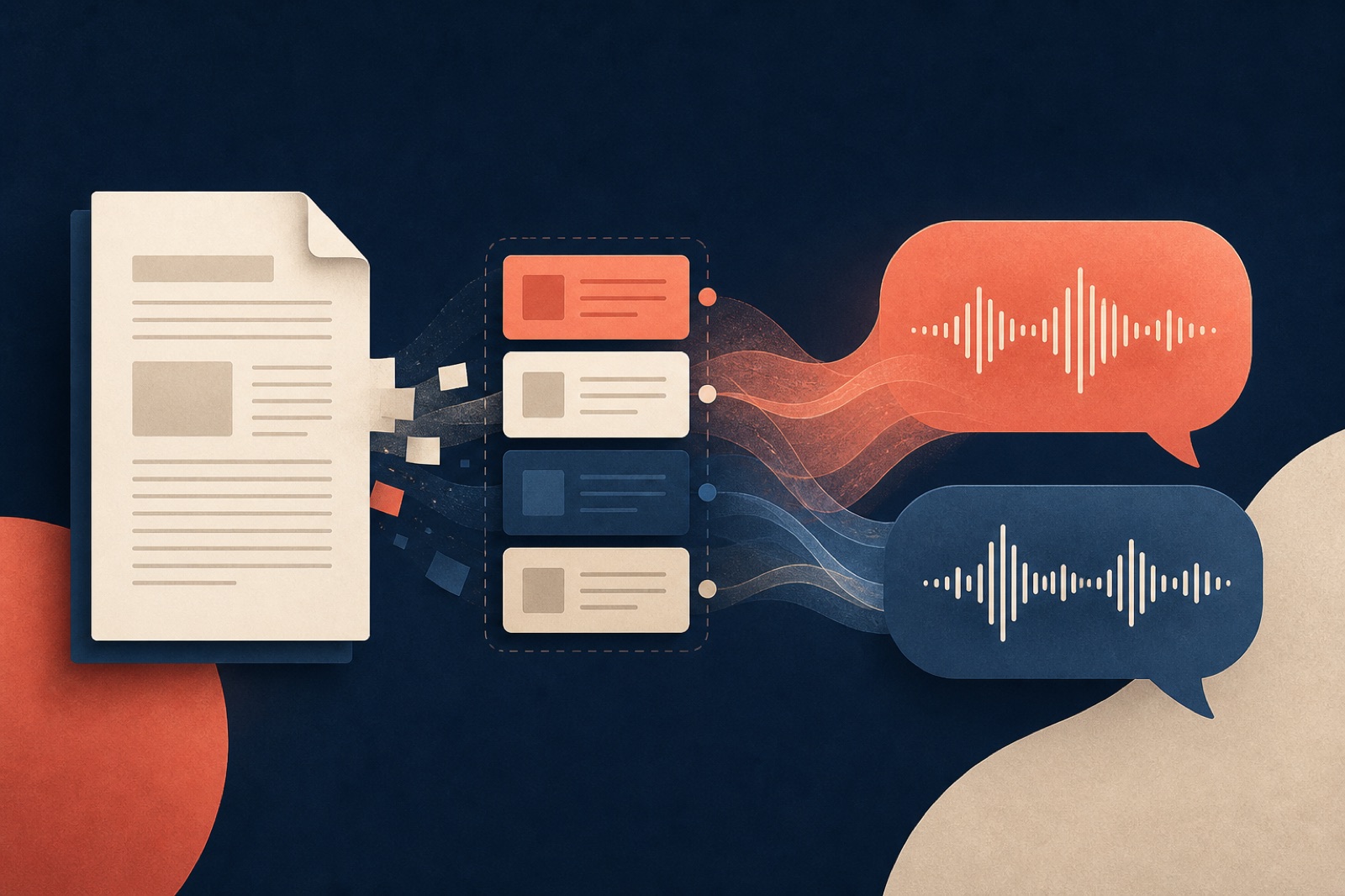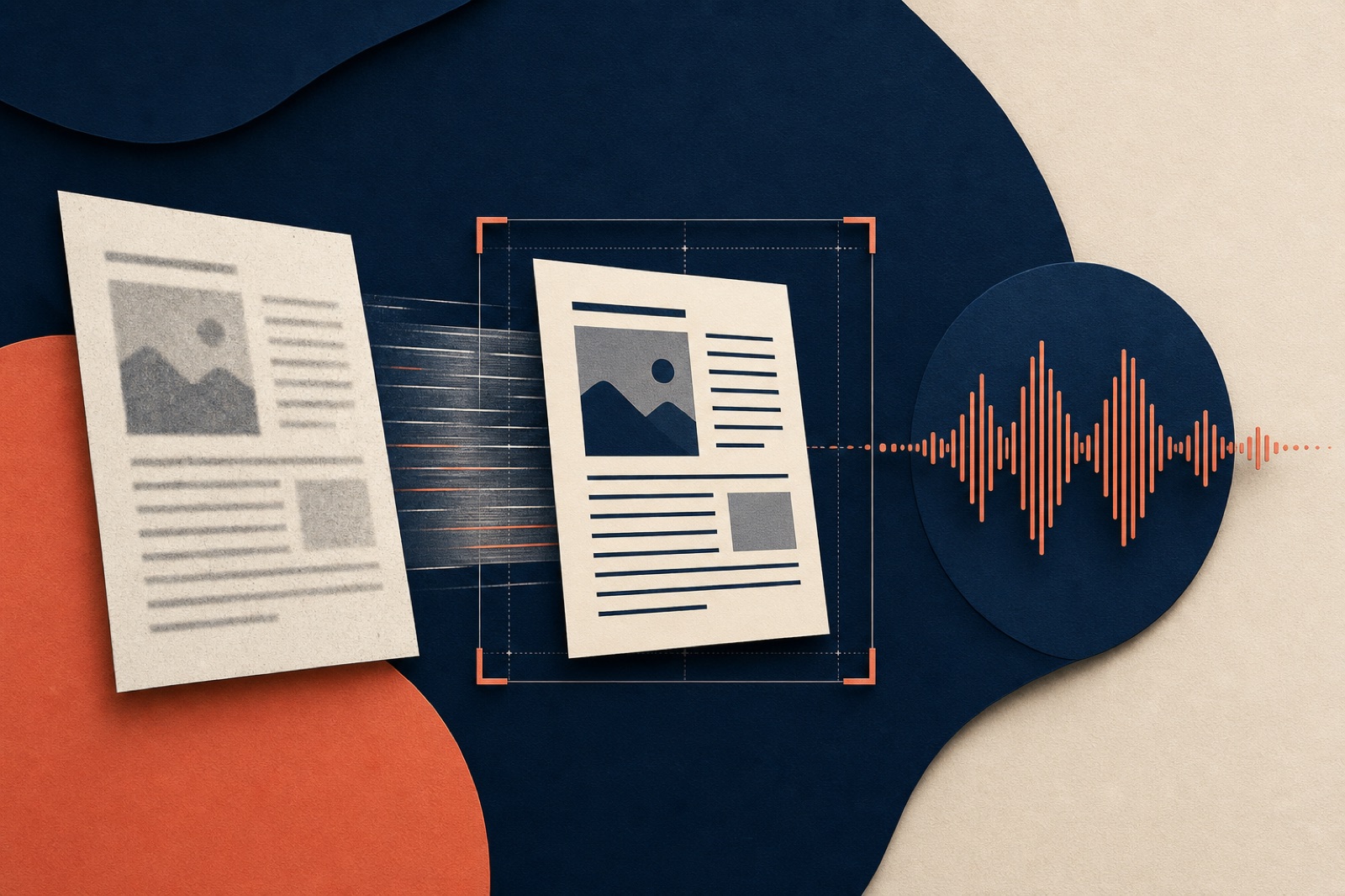
A scanned PDF can look perfect and still produce empty, scrambled, or absurd audio. The reason is structural: a scan may contain only page images. Humans see letters; conversion software sees pixels until optical character recognition adds a machine-readable text layer.
OCR is not a one-click guarantee. It predicts characters and reading order, then stores those predictions behind the page image. Before turning a scan into speech, you need to verify that hidden layer—not just admire the visible page.
Identify what kind of PDF you have
Try three tests:
- Select one sentence with the cursor.
- Search for an uncommon word visible on the page.
- Copy a paragraph into a plain-text editor.
If selection is impossible and search finds nothing, the PDF is probably image-only. If selection works but copied text is wrong, it may have a poor OCR layer. If text copies correctly from simple pages but breaks on tables or columns, recognition exists but layout analysis is unreliable.
Some “born digital” PDFs also fail. Fonts may use custom character maps, text may be converted to outlines, or security settings may prevent extraction. Diagnose behavior rather than assuming that a modern-looking file contains usable text.
Preserve the original before OCR
Work on a copy. OCR tools may deskew pages, compress images, rewrite metadata, or add text objects. Keeping the untouched scan lets you compare uncertain characters and rerun recognition with different settings.
Record provenance: where the scan came from, its date, version, language, and whether all pages are present. Check the first and last printed page numbers, then look for duplicated or upside-down pages. A flawless text layer cannot repair a missing page.
If the document is confidential or restricted, review where the OCR happens. A desktop tool and a cloud upload have different privacy implications. Do not send sensitive scans to an unknown service merely to make them searchable.
Improve the page images first
Recognition depends on input quality. Correct rotation, crop dark borders, and deskew tilted pages. Use adequate resolution, but avoid repeatedly recompressing the scan. Very aggressive contrast can erase light punctuation and diacritics.
Common obstacles include:
- bleed-through from the reverse side;
- shadows near a book spine;
- curved lines on photographed pages;
- handwriting over printed text;
- stamps touching characters;
- low contrast or colored paper;
- mixed vertical and horizontal text;
- mathematical notation and small footnotes.
Fix what you can consistently. Do not “clean” a page so aggressively that you alter evidence in an archival or legal document.
Choose the correct recognition languages
Language selection changes the character model and dictionary the OCR engine uses. Choosing English for a Chinese report can turn names into random Latin fragments. Choosing only Chinese for a bilingual technical manual may damage English acronyms and product codes.
Enable only the languages genuinely present when the tool supports multiple models. Too many languages can also increase ambiguity. For Japanese, check kanji, kana, vertical text, and ruby annotations. For Chinese, check simplified versus traditional characters, punctuation, and numerals. For European languages, inspect accents and ligatures.
Names deserve a separate glossary because dictionary correction often replaces unfamiliar proper nouns with common words. Product identifiers, legal clause numbers, and scientific symbols deserve the same treatment.
Run OCR and make the PDF searchable
Adobe’s official instructions for recognizing text in scanned PDFs describe the essential outcome: OCR adds a searchable text layer to the scanned document. Other reputable tools use the same concept.
Select the correct page range and language, then run recognition. Save the result under a new filename that identifies it as an OCR derivative. Do not overwrite the source scan.
Afterward, repeat the selection, search, and copy tests. A successful progress dialog is not validation. Search for a word on an early, middle, and late page to catch partial page ranges.
Verify reading order
Audio follows extracted order, which may differ from visual order. Two-column pages are the classic failure: the text layer alternates between left and right columns line by line. Sidebars may interrupt the main paragraph. A footer may appear in the middle of a sentence.
Copy complete pages into a plain-text editor and read them from top to bottom. Test:
- a normal prose page;
- a page with two or three columns;
- a page with a table;
- a page with an image and caption;
- a section boundary;
- the final page.
If order is wrong, export the main content into a clean document and rearrange it manually, or use a tool that lets you edit reading zones. For a short source, manual cleanup is often faster and safer than tuning a complex pipeline.
Audit high-risk characters
Speech can make OCR errors sound plausible. “1.5 milligrams” becoming “15 milligrams” is not a funny pronunciation issue. It is a changed fact.
Compare the text layer with the image wherever exactness matters:
- decimal points, minus signs, percentages, and currency;
- dates, years, clause numbers, and page ranges;
- units and superscripts;
- names and citations;
- URLs, email addresses, and identifiers;
- negations such as “not” or “no”;
- table headings and totals.
Use the document’s purpose to prioritize. A novel tolerates a different error profile from a safety manual. For high-stakes material, OCR plus generated audio is an aid, not an authoritative replacement.
Handle headers, footers, and hyphenation
Repeated running headers become irritating when spoken dozens of times. Remove them from a working text copy after confirming they contain no unique section information. Remove page numbers that stand alone, but preserve numbered steps, legal clauses, and citations.
Line-end hyphenation is another common problem. OCR may preserve conver-
followed by sation as two tokens, or incorrectly join a real compound. Search
for hyphens near line breaks and review rather than applying a global deletion.
Footnotes should be moved to a point where they make sense in audio or retained in the transcript with an explicit marker. Dropping them automatically can remove qualifications and sources.
Describe visual-only information
OCR recognizes text; it does not explain a graph, photograph, map, or diagram. Figure captions are useful but may not state the pattern the figure conveys. Add a concise description to the prepared source:
- what the visual represents;
- what dimensions or groups are compared;
- the main pattern;
- an exception that changes interpretation;
- where the listener can inspect the original.
Do not invent details that are not visible. For complex visuals, the honest audio line may be: “This result depends on the map on page 18; pause and inspect the source before relying on the following interpretation.”
Create an audio-ready derivative
Keep three artifacts:
- the untouched scan;
- the searchable OCR PDF;
- a cleaned, audio-ready text or document.
The third artifact can remove repeated furniture, repair reading order, insert visual descriptions, and add pronunciation notes. Label every manual addition so it is not mistaken for the original author’s words.
The broader document preparation checklist covers scope, citations, and privacy. Once the source is ready, a tool such as DuoCast can convert the cleaned PDF or text into a two-host episode. The conversion should use the derivative while the transcript remains traceable to the original pages.
Perform a final sampling test
You do not need to proofread every character for a low-stakes personal listening copy, but sampling must cover different layouts. Use this final check:
- Search succeeds on early, middle, and late pages.
- Copied paragraphs preserve sentence and column order.
- Names, numbers, units, and negations match the image.
- Repeated headers and page numbers are not treated as prose.
- Important charts have written descriptions.
- Language switches and pronunciation notes are clear.
- The original scan and OCR derivative are stored separately.
Then listen to the first few minutes while following the scan. If the spoken sequence jumps or a key term is wrong, stop and repair the source rather than trying to hide the problem with voice settings.
OCR is a bridge between pixels and language. Treating it as a verified transcription step—rather than a magical checkbox—is what turns a scanned PDF into audio you can actually trust.